PNG to SVG: Best Free Converters, AI Tools & Guides
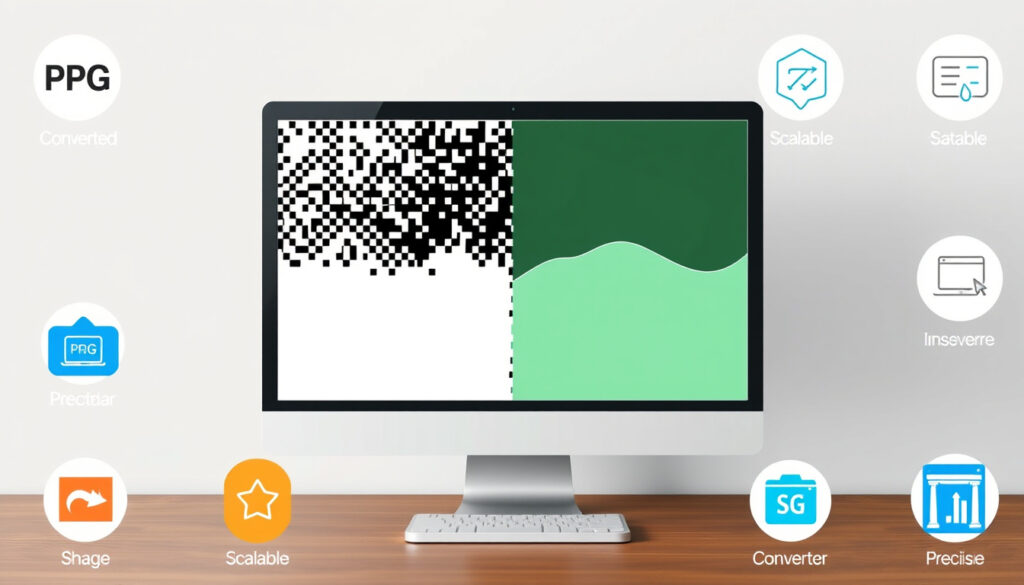
If you’ve ever tried to resize a logo and ended up with something that looked like a pixelated mess, you already know the core problem. PNG files hold images as fixed grids of pixels — great for web display, but a nightmare when you need scalability. SVG files, by contrast, store shapes as mathematical paths, so they stay razor-sharp at any size. The good news: you don’t need expensive software to bridge that gap. A handful of free and paid tools can handle PNG to SVG conversion in seconds, with quality that ranges from “good enough” to “nearly indistinguishable from the original.”
Top Free Tool: FreeConvert.com · AI Option: Vector Magic · Adjustable Colors: FreeConvert.com · Upload Sources: Computer, Drive, URL · Output Formats: SVG, EPS, PDF
Quick snapshot
- FreeConvert offers 100% free PNG to SVG conversion with batch support (FreeConvert)
- Adobe Express handles files up to 40MB for free, no credit card required (Adobe Express)
- AI Vector completes conversions in under 10 seconds with reportedly 99.9% accuracy (Automateed)
- Independent benchmark tests for SVG output file size comparisons
- Third-party accuracy validations beyond self-reported claims
- Specific performance differences on complex vs. simple images
- Mockup Maestro ranked #1 AI converter for POD workflows in 2026 (Mockup Maestro)
- SVG Genie and AI Vector both emerged as strong free-tier options in 2026 comparisons (SVGMaker)
- AI-powered vectorization is rapidly replacing traditional tracing methods
- Browser-based tools are closing the feature gap with desktop software
- Batch processing and color palette control becoming standard features
These specifications establish the foundational difference between the two formats being converted.
| Specification | Value |
|---|---|
| PNG Type | Raster/bitmap |
| SVG Type | Vector/scalable |
| Common Use | Logos, icons, illustrations |
| Conversion Challenge | Tracing raster to vector paths |
| Free Options | 5+ online tools |
| AI Accuracy Claim | Up to 99.9% (AI Vector) |
PNG to SVG Free
The free tier market for PNG to SVG conversion has expanded significantly, with several tools now offering genuinely usable free conversions without watermarks or hidden restrictions.
FreeConvert.com
FreeConvert.com leads the free converter category by offering 100% free PNG to SVG conversion with batch support — upload multiple files at once and process them without paying a cent. Users can adjust smoothness and color settings through advanced options, and the platform supports uploads from computer, Google Drive, or a direct URL. The service uses 256-bit SSL encryption, and files are deleted within hours of processing, addressing privacy concerns that often accompany online file conversions. (FreeConvert)
Convertio.co
Convertio.co supports PNG, JPG, and WEBP input formats with drag-and-drop simplicity. The free tier allows conversions without requiring signup, though full high-resolution downloads may require credits. The platform offers multiple export formats including SVG, PNG, DXF, PDF, and EPS, giving users flexibility for different downstream applications.
Adobe Express
Adobe Express provides a free online PNG to SVG converter that handles files up to 40MB — the largest file size limit among major free tools. No credit card is required to get started, and the conversion process completes in seconds through Adobe’s cloud infrastructure. (Adobe Express)
FreeConvert wins on batch capacity and adjustable settings, while Adobe Express handles larger individual files without signup friction. For casual users with small files, Adobe Express is the faster path; for designers processing multiple assets, FreeConvert’s batch support saves hours.
PNG to SVG AI
AI-powered vectorization represents the most significant leap in PNG to SVG conversion technology, with machine learning models now capable of producing cleaner paths than traditional auto-trace tools.
Vector Magic
Vector Magic has been a staple of accurate vector tracing for years, and its AI-enhanced algorithms consistently produce professional-quality SVG paths with minimal manual cleanup required. The online service starts at $9.95/month, while the desktop application costs $295 for a one-time license. Ranked #5 in 2026 comparisons for flat artwork and logo cleanup, Vector Magic excels at generating editable SVG paths that preserve the visual integrity of the original raster image. (Mockup Maestro)
AI Vector
AI Vector offers lightning-fast conversion completing tasks in under 10 seconds, with an accuracy rate reportedly reaching 99.9% according to tool providers. The platform requires no registration, offers unlimited free conversions, and emphasizes privacy by not storing or sharing uploaded files. Testing shows it performs best with PNG files; JPG and complex images may still require additional editing to achieve clean vector output. (Automateed)
VectoSolve
VectoSolve combines AI vectorization with a full editing suite, offering background removal, color editing, and batch conversion capabilities. The platform claims over 120,000 registered users among designers, crafters, and developers worldwide. Free previews are available without signup, while full-resolution downloads start at $2.50 in credits. Multiple export formats include SVG, PNG, DXF, PDF, and EPS. (VectoSolve)
The quality gap between AI vectorizers and traditional auto-trace tools has narrowed dramatically. Where designers once needed Adobe Illustrator for professional results, AI tools now deliver comparable output for simple logos and flat artwork — often in a fraction of the time and at a fraction of the cost.
PNG to SVG High Quality
Quality preservation during vectorization depends heavily on the source image’s resolution, contrast, and complexity. Understanding which settings matter most helps users achieve better results regardless of the tool chosen.
Smoothness Adjustment
Most conversion tools offer a smoothness or threshold slider that controls how aggressively the algorithm simplifies paths. Higher smoothness values produce cleaner curves but may lose fine details; lower values preserve complexity but can result in jagged or noisy paths. FreeConvert provides explicit smoothness controls, allowing users to dial in the exact balance between fidelity and file cleanliness. (FreeConvert)
Palette Control
Vectorizer.ai supports full 32-bit color with transparency and alpha channel preservation, exporting to SVG, PDF, EPS, DXF, and PNG formats. For logos with gradients or photographic content, this level of color fidelity prevents the posterization effects that plague simpler converters. Kittl’s PNG to SVG converter offers both full color and black/white modes, with fully editable SVG output for further refinement in design software. (Vectorizer.ai, Kittl)
Complex photographs will never convert cleanly to SVG regardless of tool quality — the vector format simply isn’t designed for continuous-tone images. AI tools work best on logos, icons, illustrations, and images with defined edges and solid colors. Low-resolution PNGs compound the problem by lacking the pixel data needed for accurate path prediction.
PNG to SVG with Color
Preserving color fidelity during vectorization requires tools that handle color palettes intelligently, especially when source images contain multiple colors or gradients.
Color Preservation
FreeConvert allows users to adjust color settings during conversion, maintaining original hues or manually specifying palette preferences. This flexibility proves particularly valuable for brand assets where color accuracy is non-negotiable. Vectorizer.ai’s 32-bit color support ensures that even subtle gradients transfer without banding or color loss. (FreeConvert, Vectorizer.ai)
Number of Colors Setting
PNGtoSVG.com and SVG Genie both offer palette selection controls that let users limit the number of output colors. This feature serves dual purposes: reducing file size for simple icons and enabling creative reinterpretation where the converted SVG uses a deliberately constrained palette different from the source.
PNG to SVG Canva
Canva’s workflow for converting PNG to SVG involves a two-step process: uploading the PNG and then exporting the result as SVG. However, high-quality SVG exports require a Canva Pro subscription — a limitation that surprises many users who expect the export option to be free.
Canva Pro Method
Canva Pro subscribers can upload PNG files, make edits within Canva’s design interface, and export directly as SVG through the download menu. The exported file maintains vector properties for scalable use in other applications. Free Canva users face restrictions: they can still export PNG files at high resolution, but the SVG option is locked behind the Pro paywall. (PicWish)
Figma Method
Figma handles raster-to-vector conversion differently — while it excels at working with existing SVG files, converting a PNG requires either using a plugin or exporting through an intermediate converter. The practical workflow involves uploading the PNG to an external AI converter, downloading the SVG, then importing it into Figma for refinement.
Photoshop Method
Adobe Photoshop includes an automated tracing feature, though the results often require manual path adjustment. Users typically save the PNG, open it in Photoshop, and use Image > Trace to convert to paths — then export as SVG through File > Export. For users already in the Adobe ecosystem, Adobe Illustrator’s tracing engine produces superior results compared to Photoshop’s built-in tools.
Canva Pro costs $12.99/month for SVG export alone, while free alternatives like FreeConvert and Vectorizer.ai deliver comparable quality at zero cost. Unless you’re already invested in Canva’s design ecosystem, the dedicated conversion tools offer better value for PNG to SVG workflows.
Tool Comparison
Five major conversion approaches emerge when evaluating PNG to SVG tools: fully free browser-based options, freemium AI tools, subscription AI services, desktop software, and software-integrated converters.
| Tool | Price | Key Strength | Best For |
|---|---|---|---|
| FreeConvert.com | Free | Batch processing, adjustable settings | Bulk logo conversions |
| Vectorizer.ai | From $9.99/month | 32-bit color, multiple formats | Professional designers |
| Adobe Express | Free | 40MB file limit, no signup | Large file quick converts |
| AI Vector | Free tier available | Speed (under 10 seconds) | Fast single-file conversions |
| Vector Magic | $9.95/month online, $295 desktop | Pro-grade accuracy | Logo cleanup, flat artwork |
| VectoSolve | $2.50 credits for full-res | Editing suite, batch support | Designers needing editing |
| Adobe Illustrator | $22.99/month | Manual path control | Detailed professional work |
Three distinct pricing tiers define the market: completely free tools like FreeConvert and Adobe Express for basic needs, freemium AI tools like AI Vector and SVG Genie for casual users wanting AI quality without commitment, and subscription services like Vector Magic and Vectorizer.ai for professional workflows requiring consistent output quality.
Detailed Specifications
The following comparison details feature availability across leading converters.
| Feature | FreeConvert | Vectorizer.ai | Adobe Express | AI Vector | Vector Magic |
|---|---|---|---|---|---|
| Batch Upload | Yes | Limited | No | Yes (free tier) | No |
| Color Adjustment | Yes | Yes (32-bit) | No | Limited | Yes |
| Smoothness Control | Yes | Yes | No | No | Yes |
| Max File Size | Varies by plan | Not specified | 40MB | Not specified | Not specified |
| Export Formats | SVG | SVG, PDF, EPS, DXF, PNG | SVG | SVG | SVG, EPS, PDF |
| Signup Required | Optional | Yes (paid) | No (free) | No | Yes |
| Encryption | 256-bit SSL | Standard | Standard | Not specified | Standard |
Free tools sacrifice advanced features; paid tools sacrifice accessibility. The market naturally segments users: casual convert-and-downloaders gravitate toward free tools with lower quality ceilings, while professionals pay for batch processing, color fidelity, and export flexibility.
Pros and Cons
Upsides
- Free tools like FreeConvert and Adobe Express eliminate cost barriers entirely
- AI-powered converters produce cleaner paths than traditional auto-trace tools
- Batch processing saves hours for designers handling multiple assets
- Browser-based tools require no software installation or updates
- Multiple export formats (SVG, EPS, PDF) serve diverse downstream workflows
- Adjustable smoothness and color settings give users fine-grained control
Downsides
- Complex photographs never convert cleanly — vector format incompatibility
- Free tiers often restrict resolution, batch size, or advanced features
- Quality claims (99.9% accuracy) lack independent third-party validation
- Low-resolution source PNGs produce poor vector output regardless of tool quality
- Canva requires Pro subscription ($12.99/month) for SVG export
- Desktop software like Adobe Illustrator carries significant subscription costs
How to Convert PNG to SVG Online
The typical conversion workflow follows four stages: uploading the source file, configuring conversion settings, processing the image, and downloading the output.
- Select your converter — Choose a tool based on your priorities: FreeConvert for batch work, Adobe Express for large files, Vectorizer.ai for color-critical output, or AI Vector for speed.
- Upload the PNG file — Most tools accept drag-and-drop uploads, and several support cloud sources like Google Drive or direct URL input. Adobe Express accepts files up to 40MB without requiring signup.
- Adjust settings if available — Where offered, configure smoothness (path simplification), color palette size, and output format. Free tools with these options include FreeConvert, Vectorizer.ai, and Kittl.
- Process and preview — Click convert and wait for processing. AI Vector completes conversions in under 10 seconds; other tools typically finish within 30 seconds for standard-sized files.
- Download the SVG — Save the output file and verify quality by opening in a vector editor like Figma or Inkscape. Check edge smoothness and color accuracy before committing to final use.
The preview window is your quality gate. Zoom in on text and fine lines before downloading — this is where low-quality conversions reveal themselves. If edges appear jagged or text looks distorted, adjust smoothness settings or try a different tool before assuming the source image is at fault.
Confirmed vs. Uncertain
Confirmed
- FreeConvert supports color adjustment and batch processing with 256-bit SSL security (FreeConvert)
- Vector Magic uses AI-powered vectorization with professional tracing quality (PicWish)
- Adobe Express handles files up to 40MB for free without requiring a credit card (Adobe Express)
- VectoSolve offers background removal, color editing, and batch conversion (VectoSolve)
- Canva requires a Pro subscription for high-quality SVG exports from PNG (PicWish)
What’s unclear
- Independent benchmark tests comparing SVG quality across tools with standardized source images
- Third-party validation of accuracy claims beyond self-reported percentages
- Specific performance degradation thresholds for very complex images vs. simple logos
- Real-world file size comparisons after conversion — do outputs match expectations?
- Mobile browser compatibility details for on-the-go conversions
What the Experts Say
“Lightning-fast conversion in under 10 seconds; High-quality SVG output with clean lines and smooth curves.”
— Automateed Review (Automateed)
“I built the Vectorizer directly into Mockup Maestro because I hated jumping between apps.”
— Mockup Maestro Author (Mockup Maestro)
“With an impressive accuracy rate of 99.9% and processing speed 10 times faster than traditional tools.”
— AI.cc (AI.cc)
“The old reliable. Vector Magic has been around forever, and its algorithms are incredibly robust.”
— Mockup Maestro Blog (Mockup Maestro)
Summary
The PNG to SVG conversion landscape in 2026 offers genuinely usable free options for the first time, though the quality ceiling varies significantly by tool and source image complexity. FreeConvert and Adobe Express handle straightforward conversions without cost or signup friction, while AI-powered tools like Vectorizer.ai and Vector Magic deliver superior results for logos and flat artwork. Complex photographs remain a challenge regardless of the tool chosen — vector format fundamentally works better with defined edges than continuous-tone images.
For casual users needing occasional SVG exports, the free tier tools cover basic needs adequately. For designers processing bulk assets or requiring consistent color fidelity, the investment in Vectorizer.ai ($9.99/month) or Vector Magic ($9.95/month) pays dividends in output quality and workflow efficiency. Designers who skip the premium tier when their projects demand precision will spend more time fixing conversion artifacts than they save by avoiding the subscription.
Related reading: Best free YouTube MP3 converters
Designers exploring international options can find valuable insights in French guide to top converters, highlighting proven free tools for PNG to SVG conversion.
Frequently Asked Questions
What is the difference between PNG and SVG?
PNG files store images as fixed grids of pixels (raster/bitmap format), making them resolution-dependent and prone to pixelation when scaled up. SVG files store shapes as mathematical paths (vector format), enabling infinite scalability without quality loss. This fundamental difference makes SVG the preferred format for logos, icons, and any graphics that need to render at multiple sizes.
Why convert PNG to SVG?
Converting PNG to SVG makes sense when you need scalable graphics for web responsive design, print materials, or applications requiring crisp rendering at any size. Logos saved as SVG can be used everywhere from favicons to billboard advertisements without recalculating pixels. Designers also convert PNG to SVG to enable further editing in vector software like Adobe Illustrator, Figma, or Inkscape.
Is PNG to SVG conversion lossy?
The conversion process itself doesn’t add data loss, but the transformation from raster to vector inherently involves interpretation. Complex photographs converted to SVG will lose detail because the vector format represents shapes through paths rather than pixel grids. Simple logos, icons, and flat artwork with defined edges convert with minimal loss and often maintain near-perfect fidelity to the original.
What file sizes work best for PNG to SVG conversion?
Higher resolution source PNGs produce better SVG conversions because they contain more pixel data for the tracing algorithm to work with. Images with clear contrast between foreground and background, distinct edges, and solid colors convert most successfully. Adobe Express handles files up to 40MB, which typically accommodates high-resolution source images; lower resolution files may still work well if the original image has clean, simple content.
Can all PNGs convert perfectly to SVG?
No. Photographs and complex images with gradients, subtle color transitions, or texture overlays will never convert cleanly to SVG regardless of tool quality. The vector format fundamentally represents shapes through mathematical paths, not pixel grids. AI tools excel at simple logos, icons, illustrations, and any image with defined edges and relatively few colors. Expecting photorealistic conversions from any tool leads to disappointment.
How long does PNG to SVG conversion take?
Processing times vary by tool and file size: AI Vector completes conversions in under 10 seconds, most other browser-based tools finish within 30 seconds for standard-sized files, and larger or more complex images may take longer. Batch processing significantly extends total time when uploading multiple files. Free tools and paid services generally offer similar processing speeds, with the main difference being file size limits and quality settings available.
Are there limits on free PNG to SVG tools?
Common limitations include file size caps (Adobe Express at 40MB, other tools at lower thresholds), batch size restrictions on free tiers, reduced output resolution before purchasing credits, and unavailable advanced settings like color palette control or smoothness adjustment. FreeConvert offers the most generous free tier with batch support and adjustable settings, while other free tools like Adobe Express provide higher file size limits but fewer customization options.
What if PNG to SVG conversion loses details?
If the conversion produces unsatisfactory results, first check whether the source PNG is low resolution or contains complex content unsuitable for vector conversion. Adjust smoothness settings lower for more detail preservation (though this may increase file size). Try a different tool — AI Vector handles PNG files differently than Vectorizer.ai, which may produce better results for your specific image. For mission-critical logos, consider manual tracing in Adobe Illustrator or hiring a freelance vector artist for precise results.
More related posts
 Tony Sirico: From Mobster to Sopranos Icon
 Home Loan Rates Ireland: Compare Current Rates & Predictions
 Concept 2 Rower: Benefits, Workout Guide, and Buying Tips
 S&P: What It Stands For, Returns, Ratings & Beginner Investing
 Furniture Outlet Dandenong: Location, Hours, Deals & Reviews
 Best Rated Kids Lunch Boxes for School in Ireland
 Kevin Sheedy: AFL Legend, Coach & Premiership Record
 Andy Whitfield’s Spartacus Exit, Cancer Death & Legacy
